Skip to content

Parametric organizers
that perfectly fit your space.

Measure your space, snap a photo or write a sentence about what goes in it, and get up to three AI-suggested layouts that fit. Edit them in 3D and print them on your own 3D printer — for yourself or your clients.

3MF with the modules already on plates, or a ZIP of STL files

The 3MF opens in Bambu Studio with the modules placed on named plates. The STL files work in any slicer.

STL ZIP3MF

Interactive demo

See the complete workflow before you start.

A short tour of the editor: measure your space, fill it with modules, get layout suggestions and download a 3MF for your slicer. No account required.

22 guided steps · about 3 minutes

Interactive demo

Built into the configurator

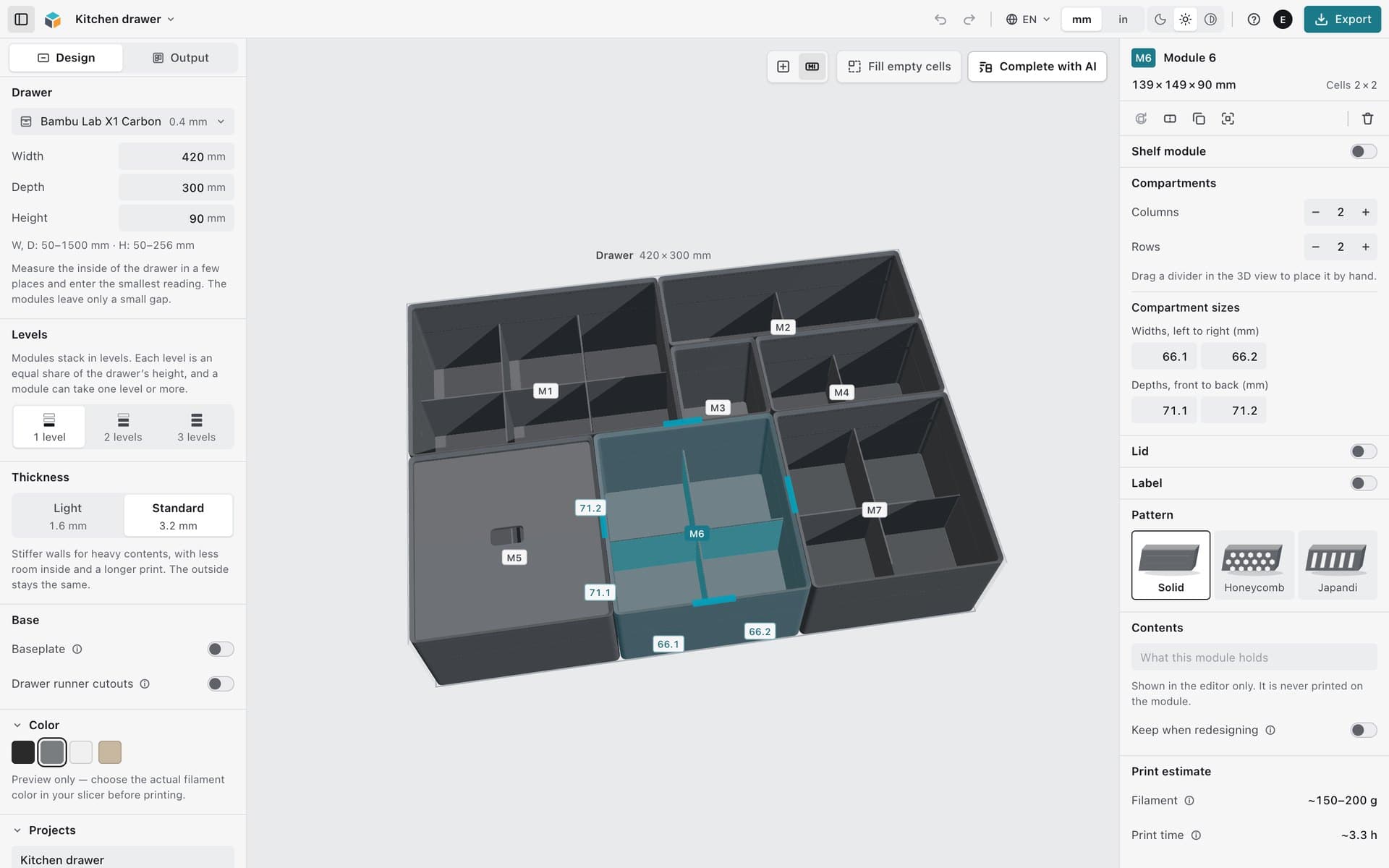
Design your organizer and prepare it for printing.

Set the dimensions, configure the modules and export the finished project for your own 3D printer.

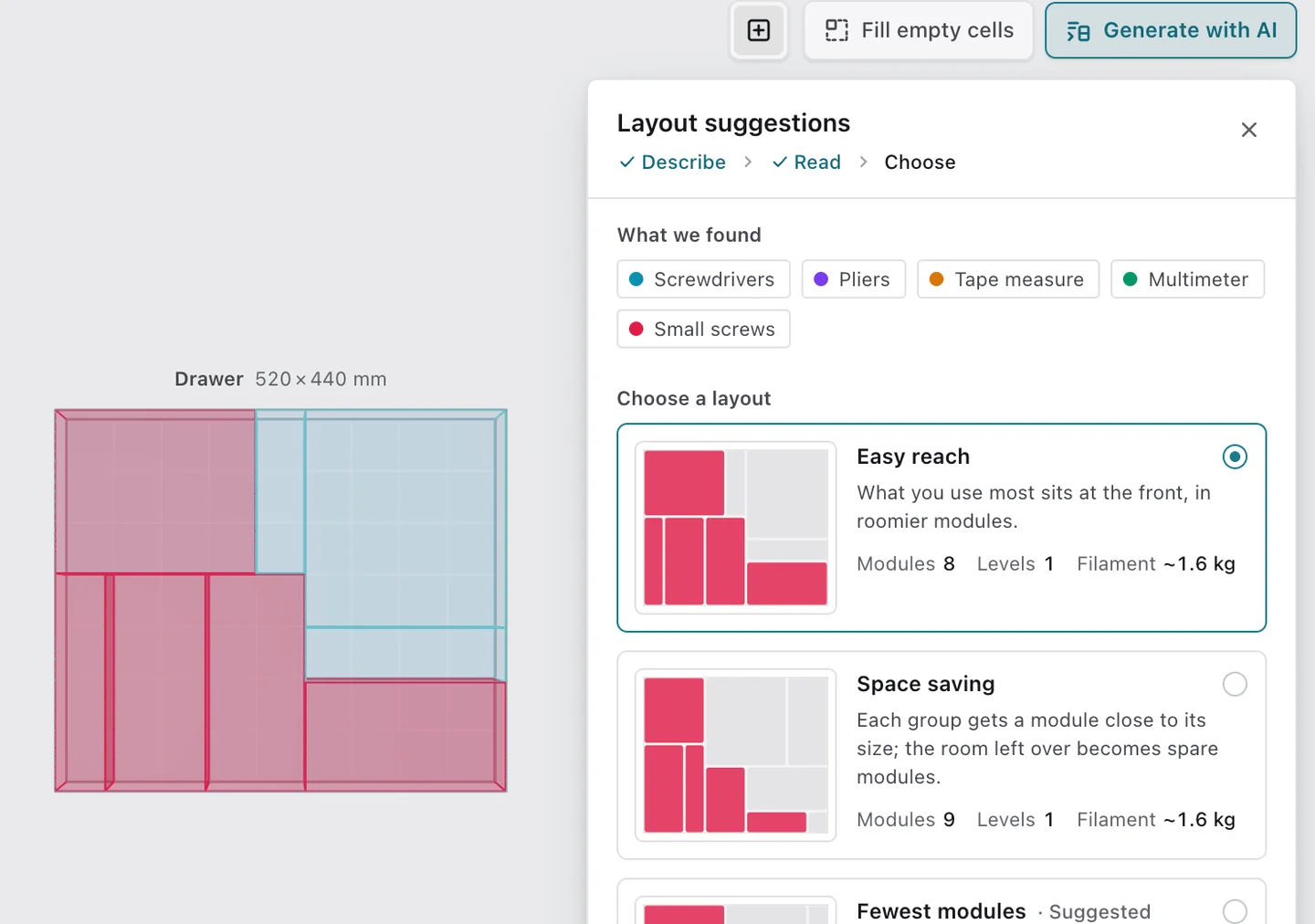
The editor’s Layout suggestions panel: the items it found in a workshop drawer and the layouts it planned, each with its modules, levels and filament, previewed in the drawer

Layout suggestions (AI)

Snap a photo of the mess. Get layouts ready to print.

Add up to three photos of what you want to store, or describe it in a sentence. The AI recognizes the items and estimates their size; CubeOn then plans up to three different layouts for your space, each with its module count, levels and filament weight.

  • Every module fits your space, your printer’s bed and its print height.
  • The layout becomes ordinary modules you can move, resize and delete. One Undo takes it back.
  • Start from an empty space, or keep your modules and let it complete the rest.
Generate with AI

Three free tries on a free account. Included in Maker and Commercial.
Design

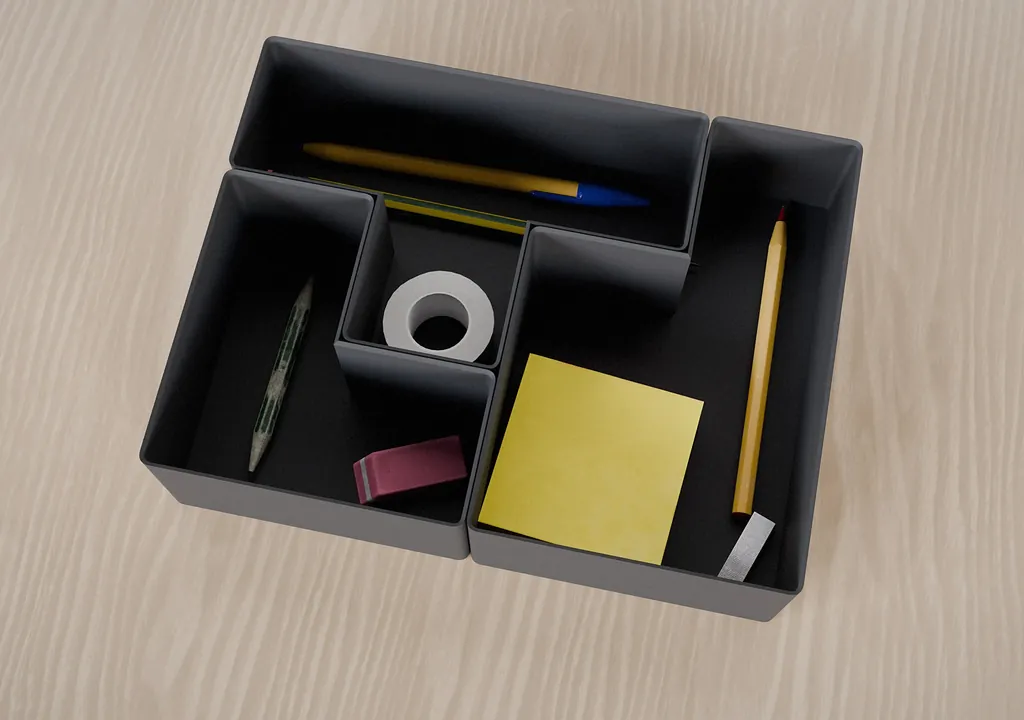
Multi-level design. Use up to three levels in one project and turn vertical space into usable storage.

Multi-level design

Use up to three levels in one project and turn vertical space into usable storage.

Baseplate system. Anchor free-standing layouts to a printable baseplate while leaving unused space open.

Baseplate system

Anchor free-standing layouts to a printable baseplate while leaving unused space open.

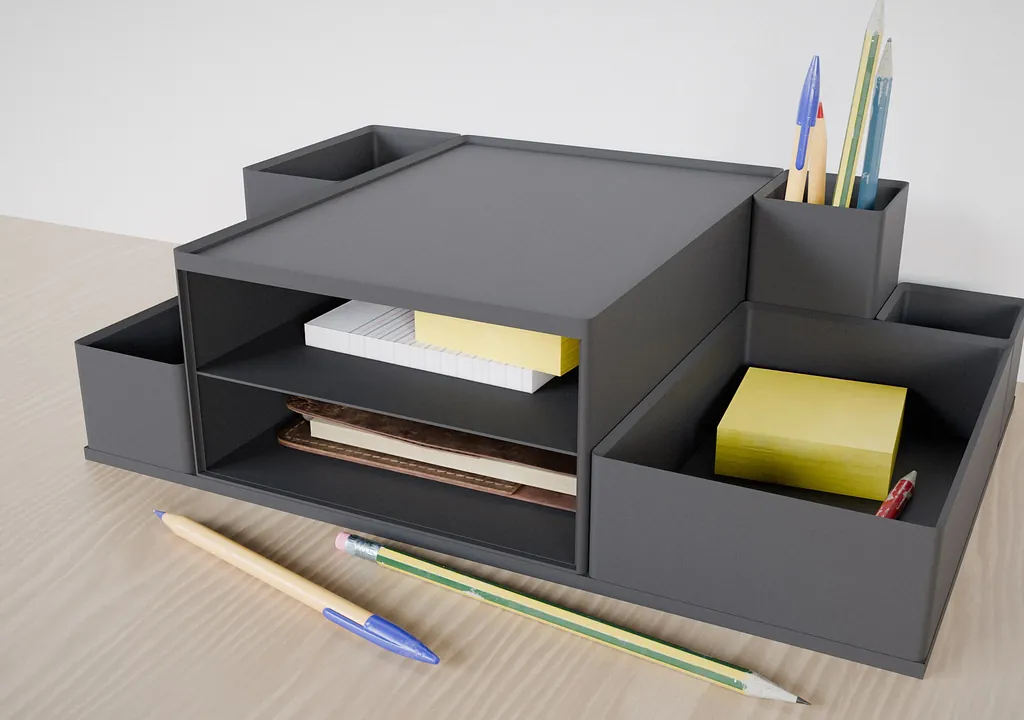
Side-shelf modules. Open a module from the side to create a free-standing shelf for desks, cabinets and baseplate layouts.

Side-shelf modules

Open a module from the side to create a free-standing shelf for desks, cabinets and baseplate layouts.

Customize

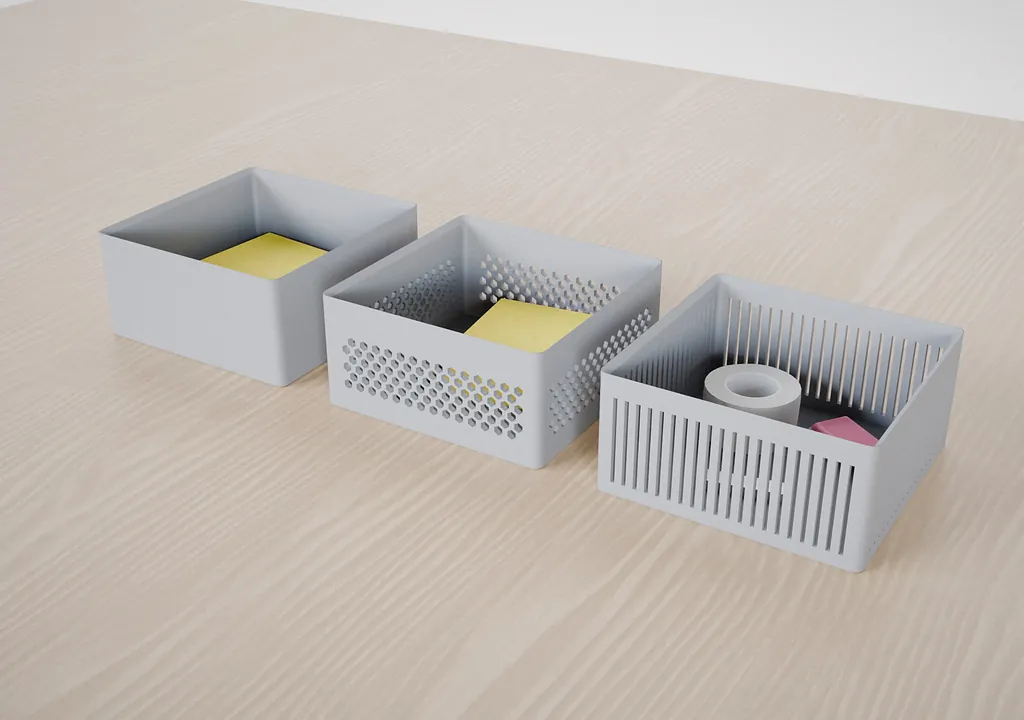
Wall patterns. Switch between solid, Honeycomb and Japandi walls without rebuilding the module.

Wall patterns

Switch between solid, Honeycomb and Japandi walls without rebuilding the module.

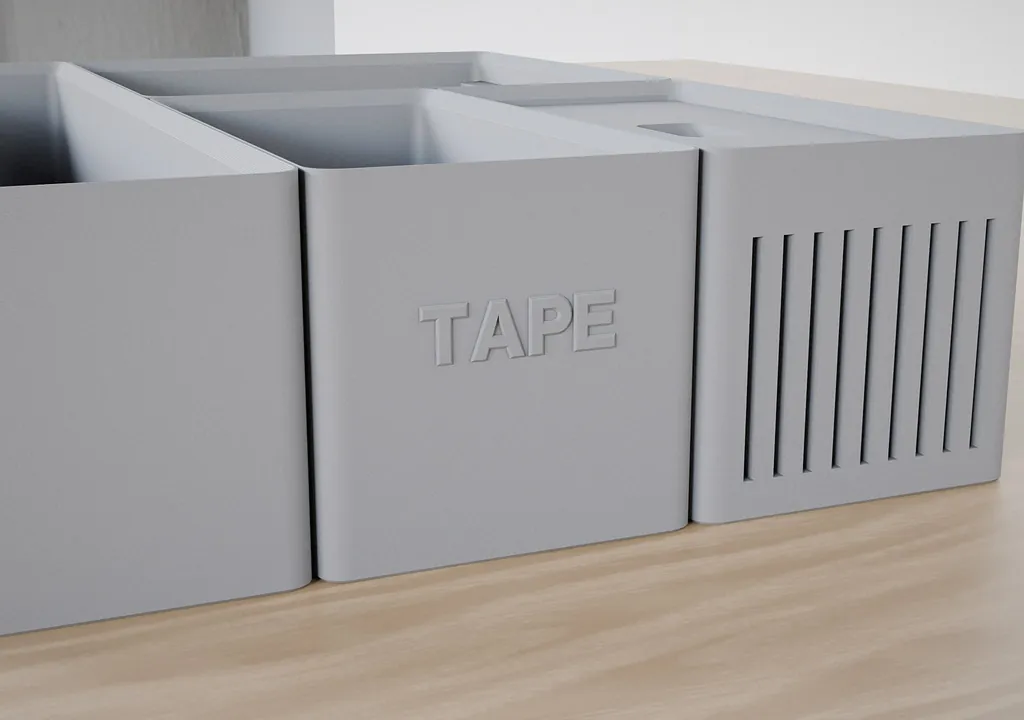
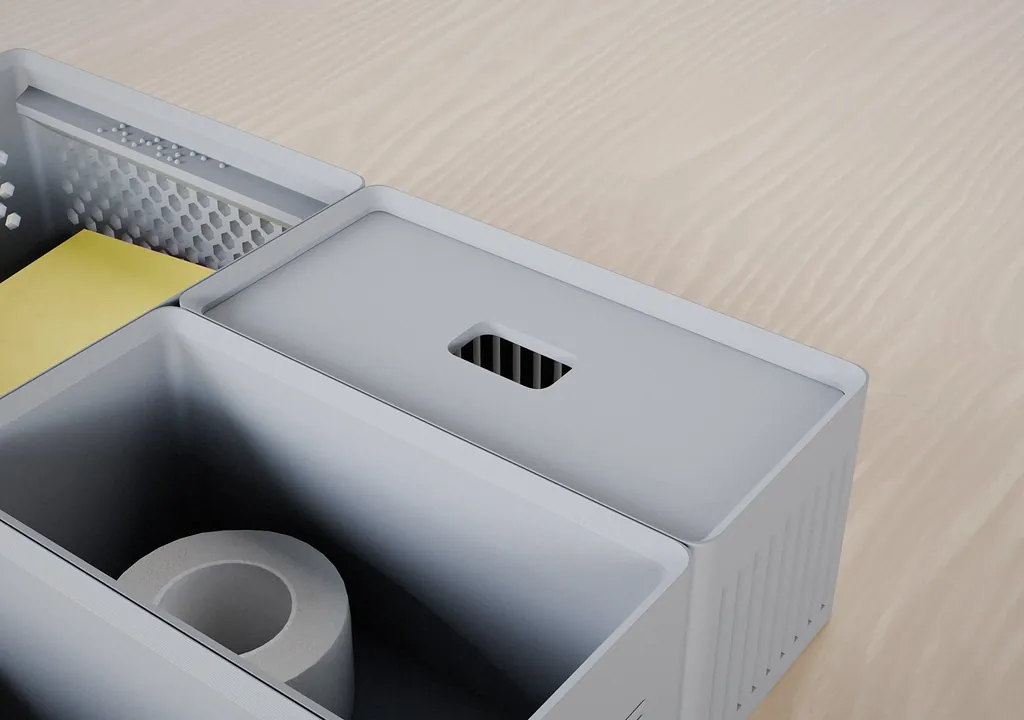
Text and Braille labels. Add side or top text, or use Braille markers when tactile identification matters.

Text and Braille labels

Add side or top text, or use Braille markers when tactile identification matters.

Fitted lids. Add or remove a fitted lid when a module needs protection, stacking or portability.

Fitted lids

Add or remove a fitted lid when a module needs protection, stacking or portability.

Prepare & manage

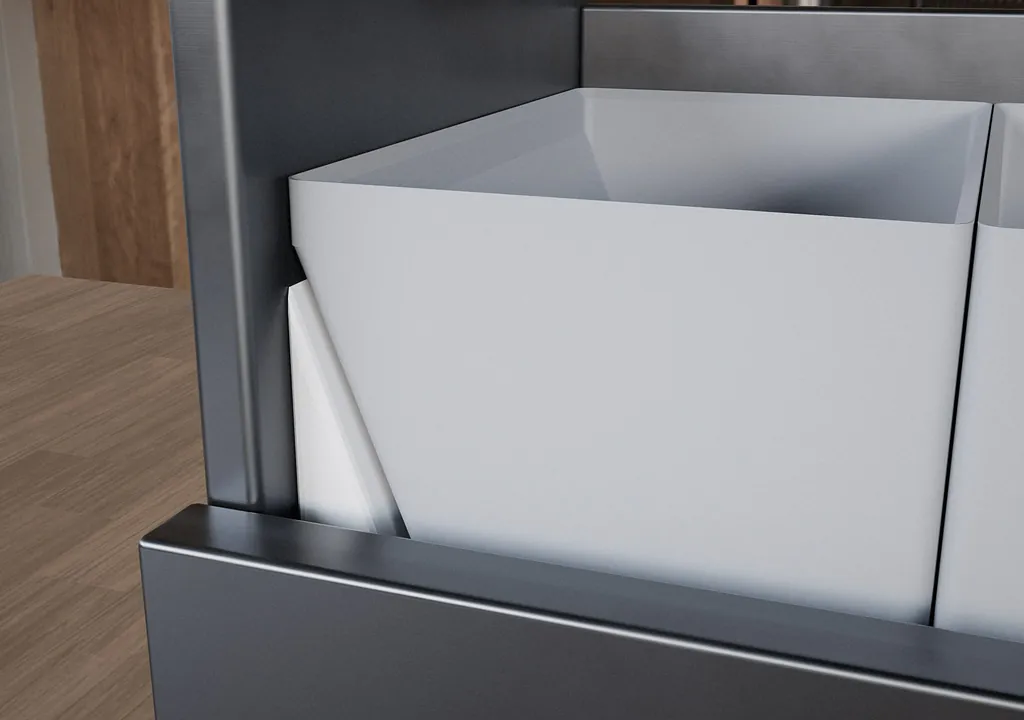
Runner cutouts. Add cutouts where drawer runners take up usable interior space, for example in Blum TANDEMBOX, Hettich InnoTech or GTV Modern Box systems.

Runner cutouts

Add cutouts where drawer runners take up usable interior space, for example in Blum TANDEMBOX, Hettich InnoTech or GTV Modern Box systems.

Join modules. Join neighboring modules into one to save filament and print time. CubeOn then arranges the modules on your printer’s plates.

Join modules

Join neighboring modules into one to save filament and print time. CubeOn then arranges the modules on your printer’s plates.

Project control

Save named projects, undo changes and keep experimenting without losing a working layout.

The finished layout

Organization designed around what you store

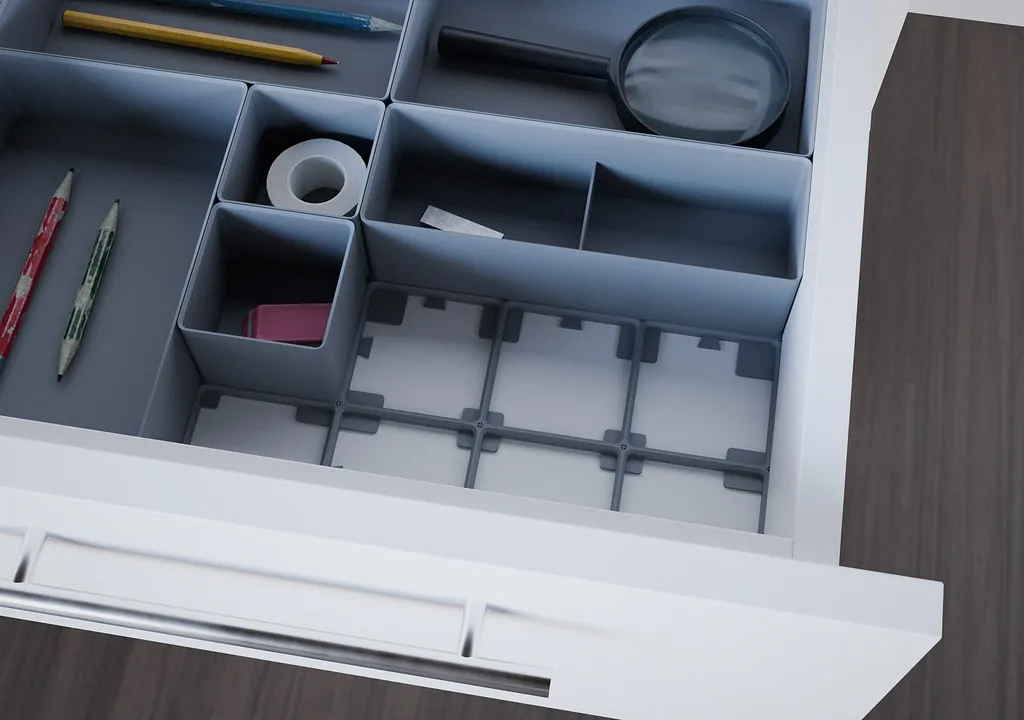
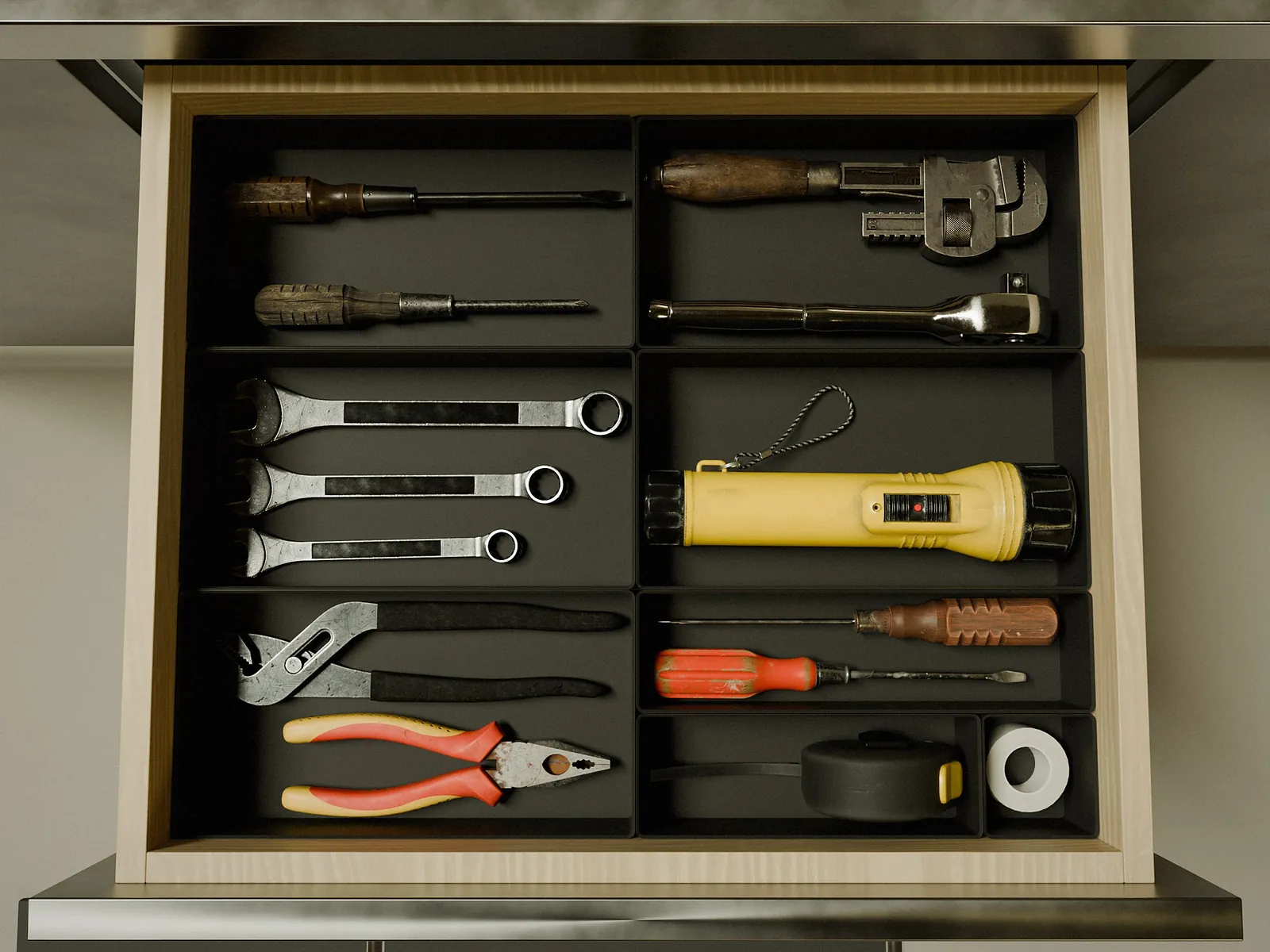
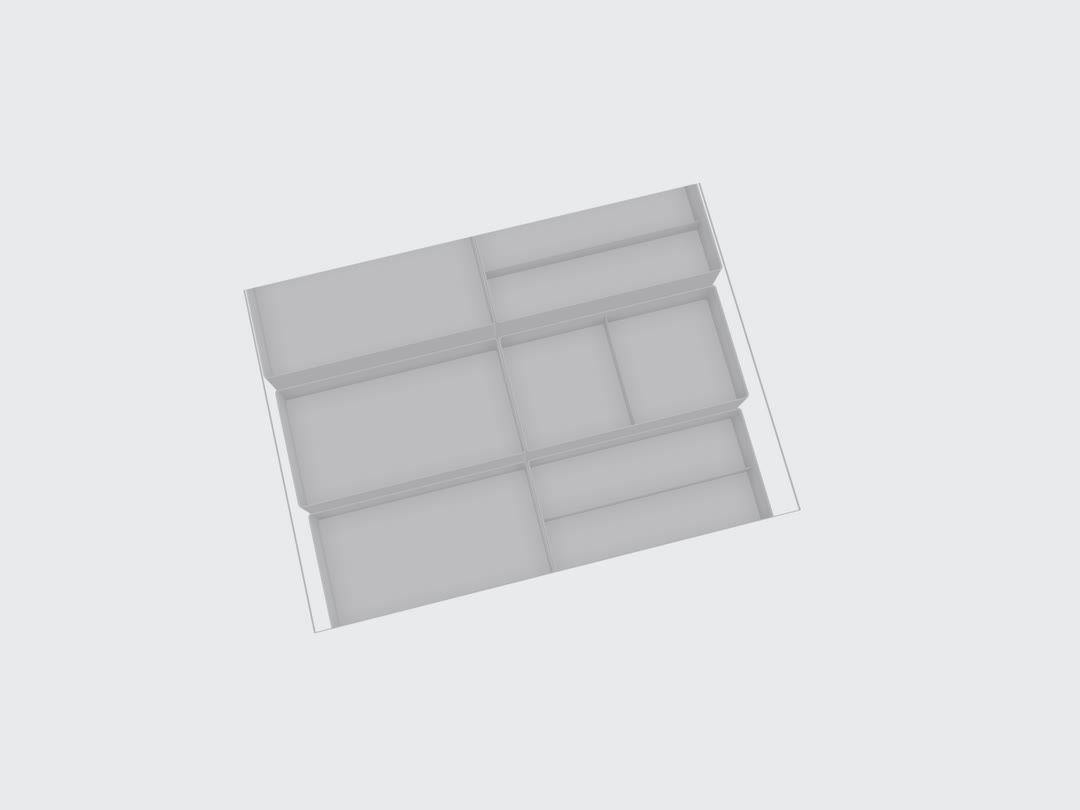
An organizer fitted wall to wall in a workshop drawer, seen from above

Made for the space you measured

The organizer starts with your dimensions, so the layout follows the available interior instead of a fixed bin size.

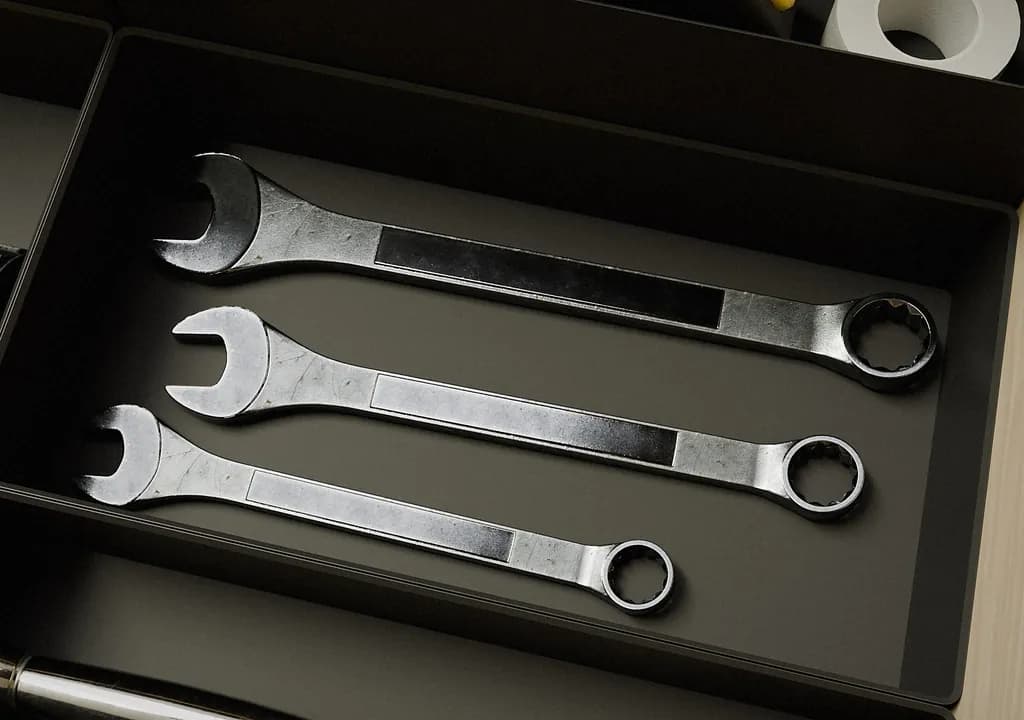
Wrenches lying in a compartment shaped around them

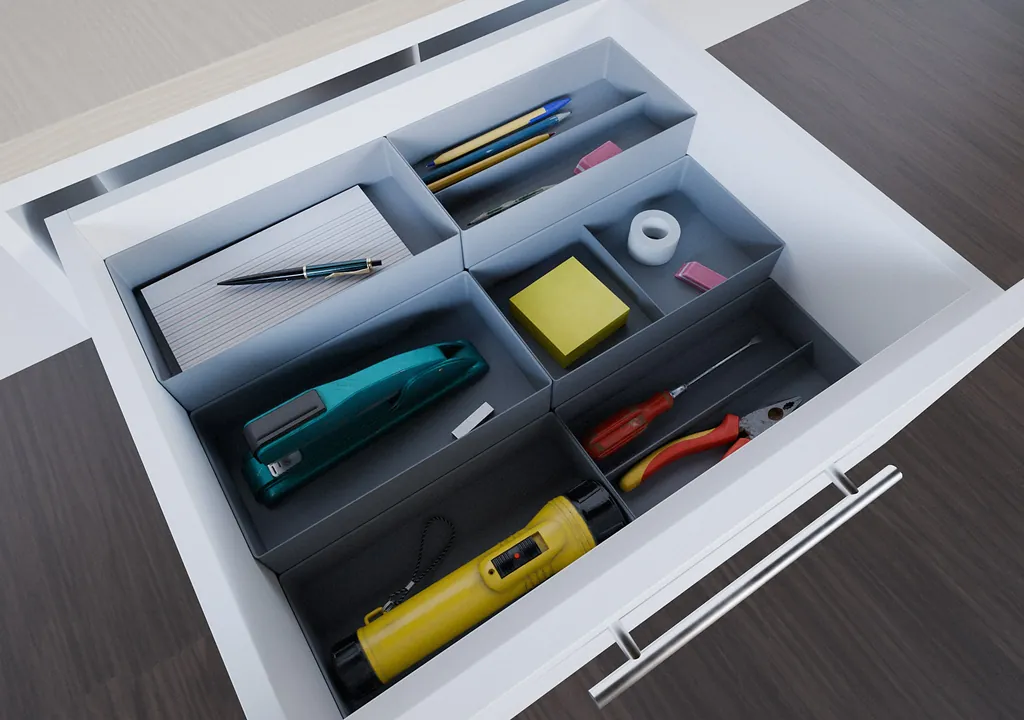
A place for the things you actually store

Shape compartments around your own objects and routines instead of adapting the drawer to a predefined insert.

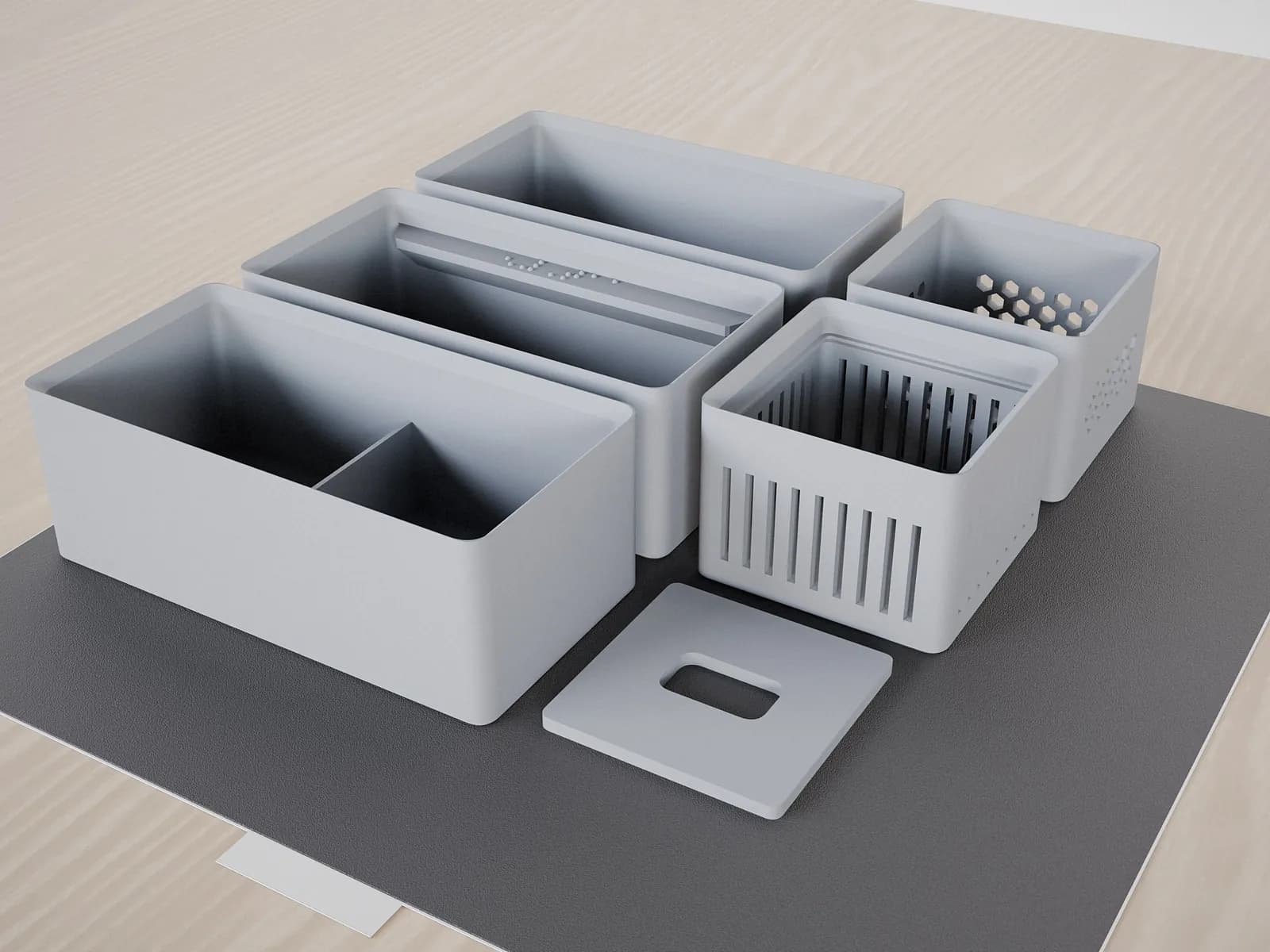
Exported modules arranged on a printer plate

Files for your own print workflow

Move from an approved layout to exports you can prepare in your trusted slicer and print on your own machine.

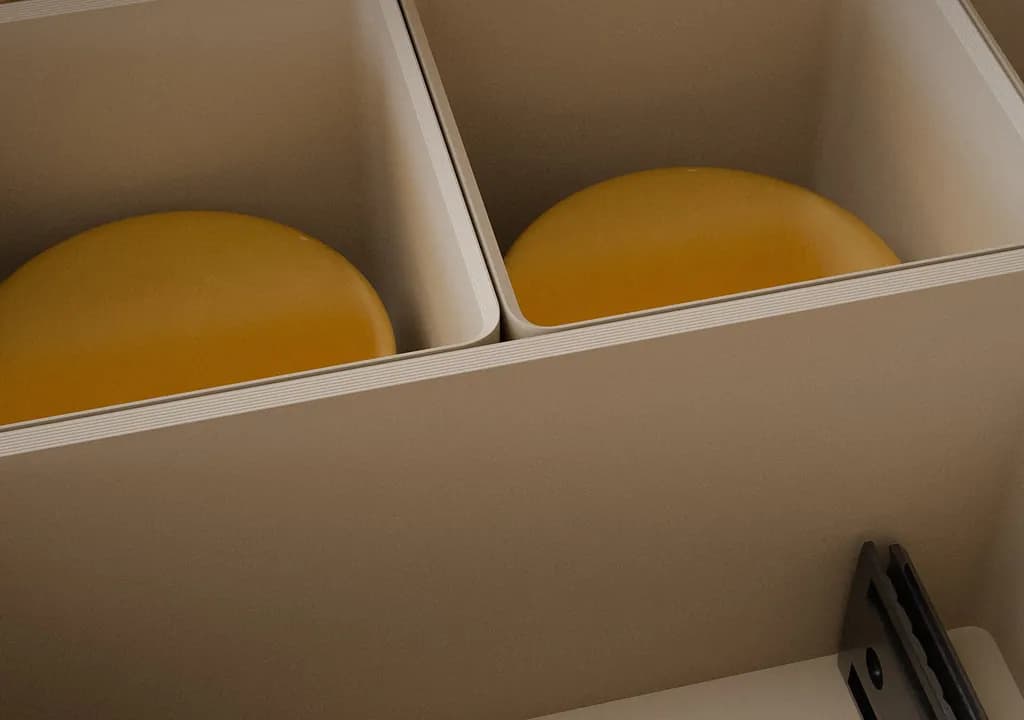
Close-up of a module wall printed in the Light style
Light
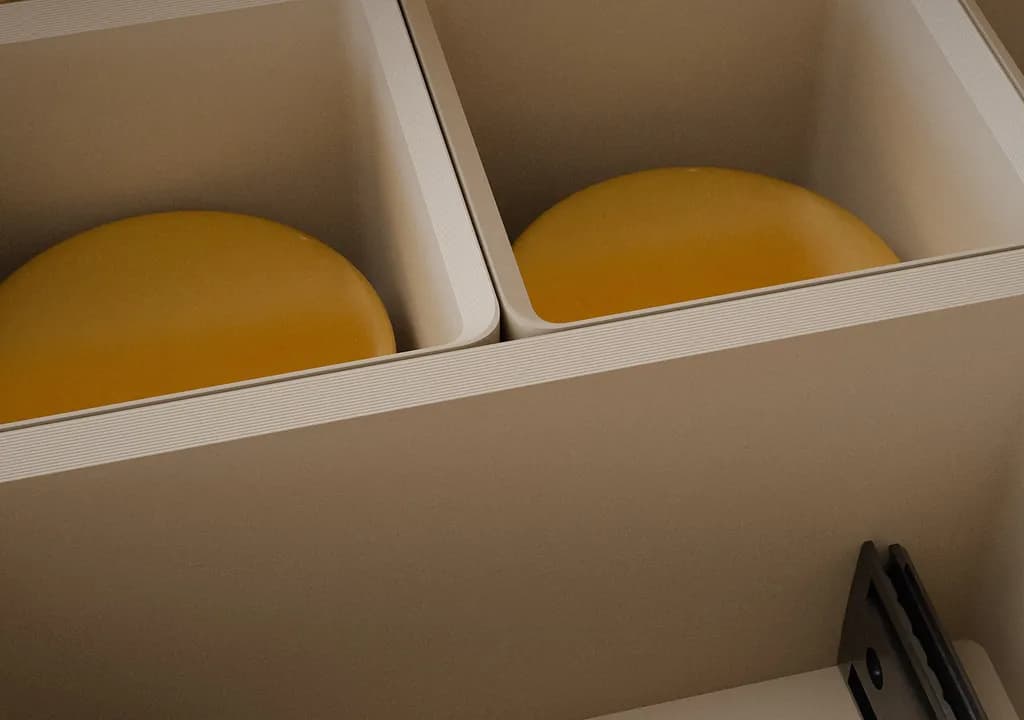
Close-up of the same module wall printed in the Standard style
Standard

Light and Standard walls

The same drawer exported twice. Light walls use less filament and print faster; Standard walls are thicker and take more handling.

Accessibility by design

Braille labels and a high-contrast mode

CubeOn Studio and this website are built with low-vision users in mind. Braille labels let blind users tell printed modules apart by touch.

Clear by default

Readable type, strong hierarchy and visible focus states help people with low vision move through the website and tool.

Display that adapts

Choose light, dark or high-contrast mode. Motion is reduced automatically when requested by the operating system.

Braille-ready organizers

Add Braille labels to modules so blind and low-vision users can identify printed organizers by touch.

Compared

CubeOn and other organizer tools

Several of these tools are free. Each one starts the layout from something different.

CubeOn and other organizer tools
ToolLayout starts fromHow you designCost of print filesWhen to pick it
CubeOnThe interior you measuredIn a 3D view: click to place modules; settings start from defaultsMaker 30-day pass or Commercial plan; designing is freeA space you measured should be filled to the millimeter
Gridfinity toolsDrawerforge (opens in a new tab) · Gridfinity Layout Tool (opens in a new tab)A 42 mm grid; the rest becomes a margin, half cells or a gapSettings for the grid, margins, bed size and plate splittingFree to useBins should fit any Gridfinity baseplate
Make My Desk Organizer (MakerWorld) (opens in a new tab)Shapes you drawDraw compartment shapes, then set each height in a 3D previewSee their site (opens in a new tab)You want free-form compartments
MachDeinTeil (opens in a new tab)Drawer width and depth, plus insert heightA form with drawer size and layout presetsPaid per fileOne simple insert is enough
Bento3D (opens in a new tab)The size you set for each box or binPick a model, then set width, height, depth and partitionsSome models free; others a one-time unlock or creditsYou need one box or tray
CAD (Fusion, OpenSCAD, Onshape)Whatever you modelYou model every partFusion and Onshape free for non-commercial use; OpenSCAD freeYou need shapes no configurator makes

For example, the 437 × 514 mm space the editor opens with: a 42 mm grid fits 10 × 12 cells and leaves 17 mm and 10 mm over. CubeOn divides the whole width and depth into 7 × 9 cells of about 62 × 57 mm, so no strip is left over.

See the full comparison, with sources

Checked on October 7, 2026, against each tool’s own pages; Make My Desk Organizer on September 13, 2026.

CubeOn Studio pricing

Design for free. Pay $10 when you want the files.

There are good free tools too, and our comparison names them. CubeOn is for when you’d rather measure, click and print. Maker is a one-time 30-day pass for personal projects; Commercial is a subscription for sales and client work.

Preview

Design and evaluate CubeOn Studio before choosing an export plan.

Preview

$0forever

  • Design in the editor
  • Live 3D organizer preview
  • No payment method required
  • Layout suggestions (AI): 3 free tries
  • File exports require Maker or Commercial
Open the configurator

Maker

For makers producing organizers for their own personal, non-commercial use.

30-day pass

Calculating your local price…

One-time payment, no renewal

  • 3MF and full-project STL export
  • Layout suggestions (AI)
  • Personal, non-commercial use only
  • Up to 25 cloud projects
Get the Maker pass

Commercial

For businesses and professionals producing organizers for sale or client work.

Monthly

Calculating your local price…

Yearly

Calculating your local price…

  • 3MF and full-project STL export
  • Layout suggestions (AI)
  • Commercial production license
  • Unlimited cloud projects
  • Cloud save and sync
Choose Commercial

Just one project? The Maker pass covers 30 days of exports with one payment, and there is nothing to cancel.

Pricing and legal details

Prices are provided by Paddle, our Merchant of Record. Where local pricing is available, amounts are shown in your currency with an estimate of applicable tax. Paddle confirms the final total before payment. The Maker pass is a single payment and does not renew. Commercial subscriptions renew automatically until canceled in the billing portal.

By purchasing, you agree to the following:

Good to know

Before you start

What you need to know about designing, exporting and printing with CubeOn Studio.

Do I need CAD experience?

No. Enter the interior dimensions, arrange modules visually and see every change in the live 3D preview.

How do layout suggestions work?

Add up to three photos of what you want to store, or describe it in a sentence. An AI model recognizes the items and estimates their size; CubeOn’s own code then plans up to three layouts and checks every module against your space and your printer. Nothing changes until you choose one. Photos and your description are sent to an AI service to be read. CubeOn does not store them, and location data is removed from photos first. A free account can try them three times; Maker and Commercial include up to 20 requests a day and 200 in 30 days.

Read the AI Policy
Do I need my own 3D printer?

Yes. CubeOn Studio creates the files; you prepare them in your slicer and print them on your own FDM printer.

What file formats can I export?

Export the complete project as a ZIP of STL files or as a 3MF project.

Which slicer can I use?

Use any modern slicer that imports STL or 3MF, including Bambu Studio, OrcaSlicer, PrusaSlicer and Cura. Check the sliced preview with your own printer profile before printing.

Does the editor work on mobile?

The website and account work on mobile. The precision 3D editor currently needs a screen at least 1024 px wide.

Is CubeOn compatible with Gridfinity?

Not as a drop-in Gridfinity system. Gridfinity uses a fixed 42 mm standard, which makes bins interchangeable across a large ecosystem. CubeOn solves a different problem: it scales the grid to the exact interior of a particular drawer, uses the full available area, and prepares the complete print job for your selected 3D printer. The two approaches can complement each other, but CubeOn modules do not follow the Gridfinity 42 mm standard.

Can I use exports commercially?

Maker is for personal, non-commercial projects. Commercial adds production rights for sales and client work, subject to the current EULA.

Review Terms & EULA
Why pay when there are free tools?

Some free tools are good, and our comparison names them, with when each one is the better choice. With CubeOn you pay for the shortcut: you type the drawer’s inside size, click where the modules go, and export a 3MF with the modules already arranged on your printer’s plates. If you’d rather set everything up yourself, a free tool is a fine choice.

What happens when my Maker pass ends?

Your account returns to Preview. Your projects stay saved and you can still view them, and you can keep printing the files you downloaded for personal use. You can buy another pass whenever you need one.

How do I report a bug or request a feature?

Use Report issue in the editor’s Help menu (?), or Send feedback directly in Account. Choose Problem or Feature request, and include steps to reproduce when possible.

Open contact form

Contact

Need help or have a question?

Your message goes straight to Matt, the person behind CubeOn. You’ll get a personal reply by email.

No hand-offs and no anonymous support queue. Every question, bug report and feature idea reaches the person who designs and builds CubeOn.

We’ll use your details only to reply to your message. Privacy Policy

Type

The 24/72 Founder Promise

Let’s stay in touch.

CubeOn is an independent product, built in close conversation with the people who use it. Your feedback directly shapes where it goes next.

24 hours

Critical bugs don’t wait in a queue.

I personally review every report. If I can reproduce a critical problem, you’ll have a fix or a safe workaround within 24 hours.

72 hours

Good ideas move quickly.

When a small, useful improvement makes sense, I aim to ship it within 72 hours, provided it can be done safely. For larger ideas, you’ll get a clear decision and delivery plan within the same timeframe.

Direct to the founder

Your message reaches the person building CubeOn.

I read every message, and what I learn helps decide what CubeOn becomes next.

“CubeOn grew out of many months of focused work and genuine care. I still design and develop it every day, and I want every user to know the person behind the product.”

Matt Mrozek

Creator of CubeOn Studio